Sending SMS Campaigns
FLG’s SMS editor gives you a simple way to create and send text message campaigns as part of your bulk actions.
Your message is written in plain text with merge tags, and a live segment counter shows exactly how it will be billed and delivered before you send.
Getting Started
To access the SMS editor:
- Go to Search leads.
- Select your recipients using filters or tick boxes.
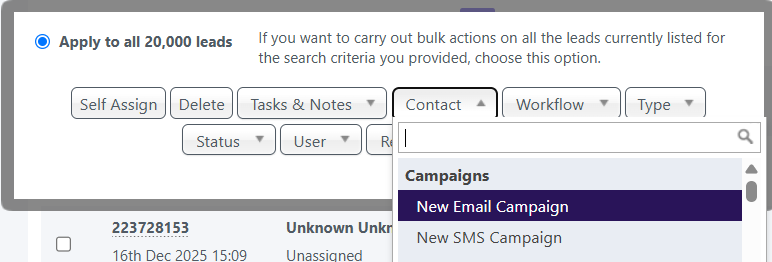
- Click Bulk actions > Contact
- Select either a pre-made template or New SMS campaign
Set your Campaign Details
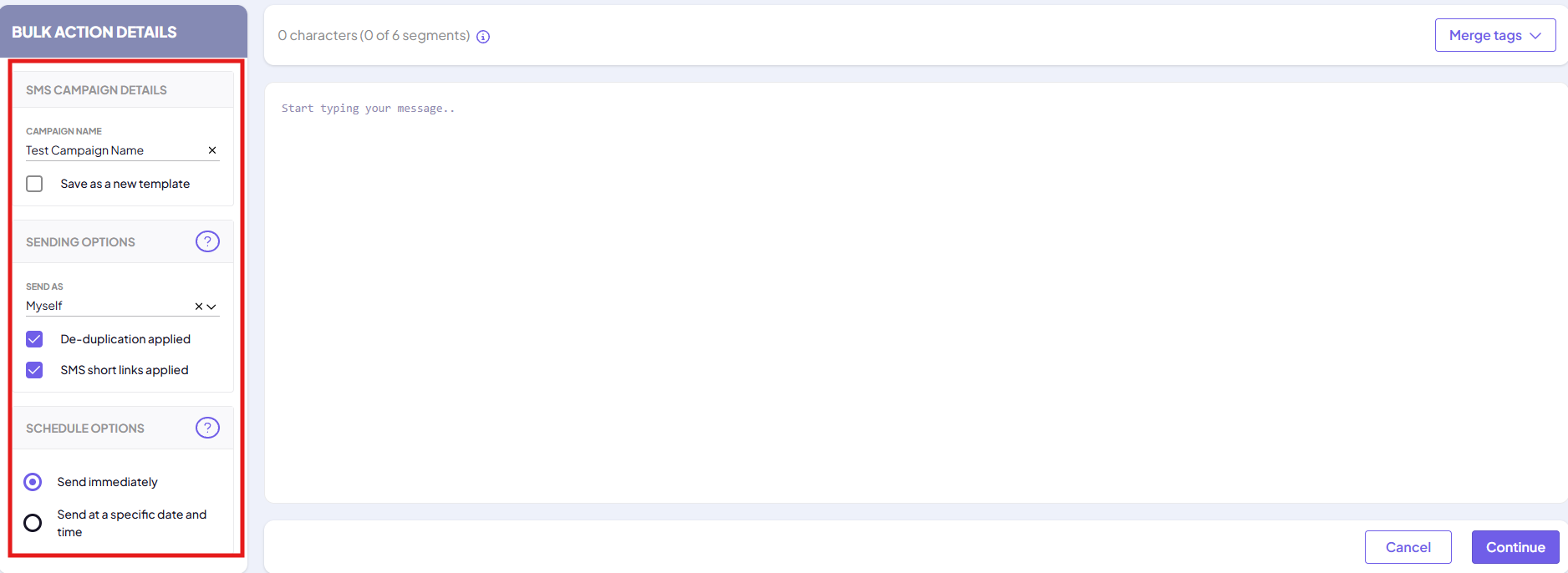
On the left-hand side, fill out the following:
- Campaign name
- Give your SMS a meaningful name for future reference.
- Save as a new template (optional)
- Tick this if you'd like to reuse the message later.
- Sending options
- Choose which number the SMS should send from.
- De-duplication is applied by default
- For more information on these options see Campaign Sending Options.
- Scheduling options
- Choose whether you want to send your email immediately or at a future date and time.
- For more information on these options see Scheduling Options
Writing Your Message
Type your message directly into the text field. Above the message box, FLG shows a live count in the format X characters (Y of Z segments), so you always know how your message will be billed before you send.
Select the info icon next to the character count for more detail on how segments are calculated.
Please note: FLG does not support Unicode characters, such as emojis, in SMS messages. If any are included, they are stripped silently when the campaign is sent, and no warning is shown. Check your message reads correctly without them before you schedule. For more detail, see Unicode Characters Are Not Supported in the SMS template builder article.
SMS Options
Short links applied: Automatically shortens any links in your message. This can reduce your character count and may bring your message down a segment.
Personalising your messages
Utilise Merge Tags to personalise your SMS. For example:
- {LEAD_FIRST_NAME}: Inserts the lead's first name.
- {USER_NAME}: Inserts the name of the user assigned to the lead.
Need Further Assistance?
If you have any questions or require additional support:
- Visit our Help Centre for more articles and guides.
- Contact our support team via the Help option within the FLG platform.
Was this article helpful?
That’s Great!
Thank you for your feedback
Sorry! We couldn't be helpful
Thank you for your feedback
Feedback sent
We appreciate your effort and will try to fix the article